Bulk Apply Custom Field to Content Types
Custom fields can be applied to content types in bulk directly when creating or updating a custom field, eliminating the need to configure each content type individually. This feature introduces a new ''Content Types'' tab, where admins can select multiple content types from the drop-down.
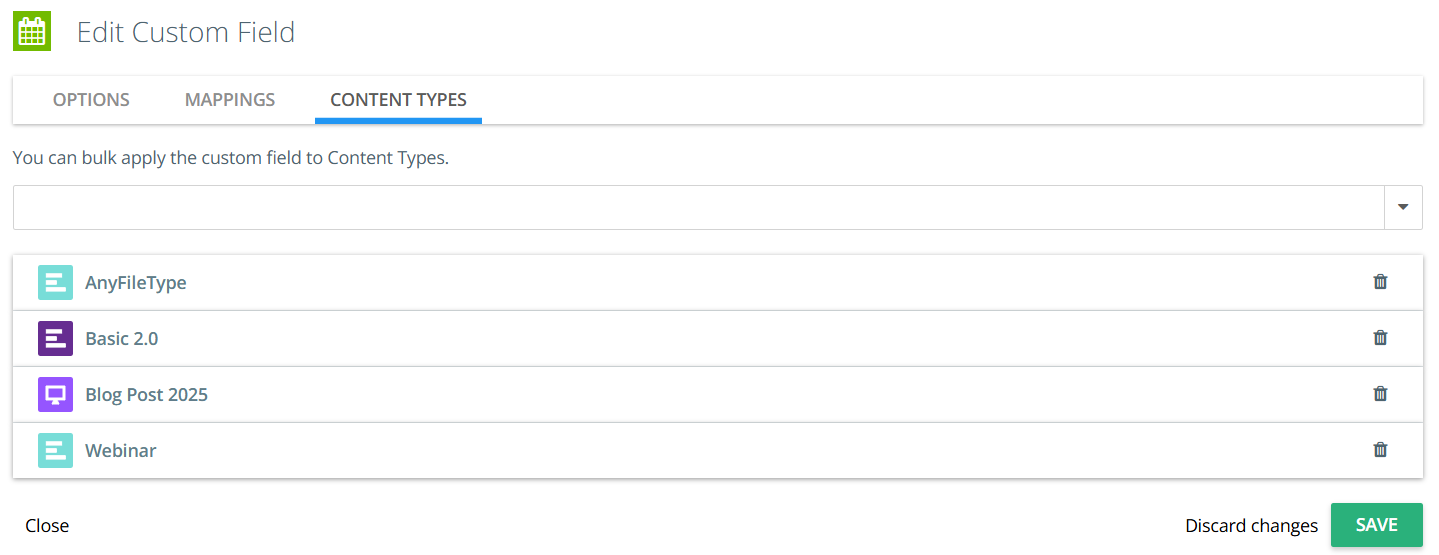
To apply custom field to content types in bulk:
-
Go to the Custom Fields setting and create a new custom field or edit an existing one.
-
Click on the Content Types tab.
-
From the drop-down, select one ore more content types to which you want to add this custom field.
Tip:
-
Click Select All to include all content types.
-
Click Clear All to remove all selected content types.
-
-
(Optional) Click the
 icon next to a content type to remove it if you do not want to add the custom field to it.
 -
Click Save.
Once applied, the custom field will automatically appear in the Custom Fields tab of each selected content type.
Note: When a custom field is added to or removed from the Custom Fields tab of a content type, the same content type will automatically be added to or removed from the Content Types tab for that custom field.
To learn how to add custom fields in content types and workflow settings, refer to Custom Fields.